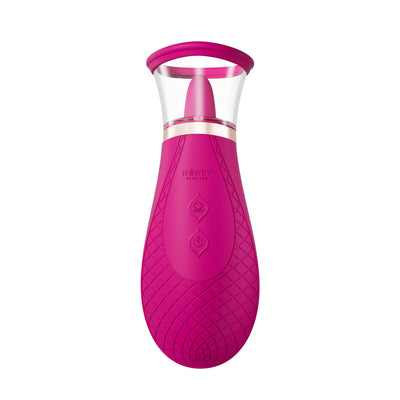
G-spot


 Introduction
 Download
Cam Model OBS Tutorial
1.
Download and install "OBS Studio & OBS Toolset".
2.
Open "OBS Studio" and set up the Overlay.
(1)

Click in sequence as shown in the picture below:
(2)

Click OK.
(3)

Click OK.
(4)

The "Overlay" as shown in the picture below indicates a successful setup
3.
Click "Connect OBS" in Vibe-Connect.

4.
Add a platform in Vibe-Connect.
(1)

Click the + sign on the right side of "Cam Site".
(2)

Select the platform you need to add.
(3)

Set up the Rule.
(4)

Set up the Streaming Settings and click the "Import from Camsoda" button. The system will automatically redirect to the corresponding website and stay on the live streaming page.
(5)

Log in to the corresponding website (e.g., Chaturbate).
(6)

After successfully logging into the streaming website, return to Vibe Connect and click the "Import from Camsoda" button again to automatically sync the Streaming Settings.
(7)

Click the "Save" button to save the settings.
5.
Click the "Start" button to to begin the live stream.